 mz.

Ever wondered how people turn a pile of PDFs into a clean, consultancy-grade slide deck in about twenty minutes? I have been doing exactly that with NotebookLM, and after a dozen decks I have a workflow that consistently beats the “upload and pray” approach. This is the whole recipe, step by step.
Official site: https://notebooklm.google.com (rebranding as Gemini Notebook, same product)
Google’s own tips: 8 ways to make the most out of Slide Decks
Feature docs: Generate Slide Decks help page
The mental model first
NotebookLM does not invent a presentation from the internet. It generates slides only from the sources you attach to the notebook. So deck quality is decided before you press Generate: garbage sources in, pretty but hollow deck out. Everything below follows from that one fact.
Phase 1: Build a notebook worth generating from
- Create a new notebook per topic. Never mix sources from unrelated projects into one notebook, the deck will blend them.
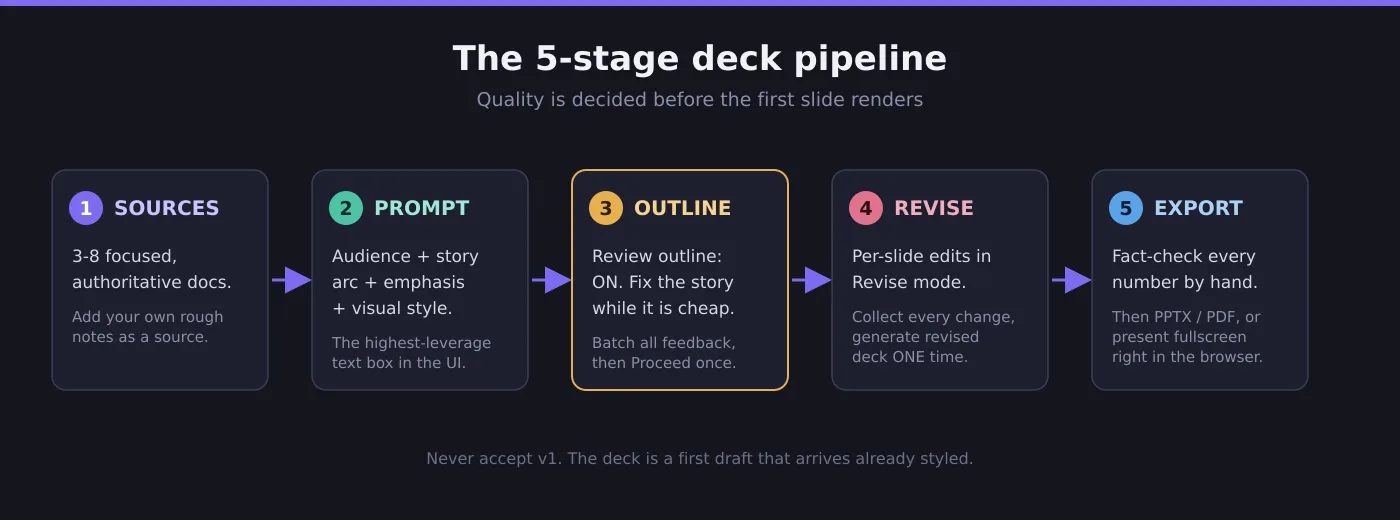
- Add 3 to 8 focused, authoritative sources: PDFs, URLs, Google Docs, pasted text, even images of handwritten notes. Quality over quantity. Thirty scraped links produce a mushier deck than five solid papers.
- Writing from scratch? Dump your rough notes, bullet points, or a stream-of-consciousness brainstorm into a doc and add it as a source. Google officially recommends this for last-minute talks.
- Before generating anything, chat with the notebook and fact-check the claims you expect on the slides. If a source is weak, swap it now, not after the render.
Phase 2: Configure generation like you mean it
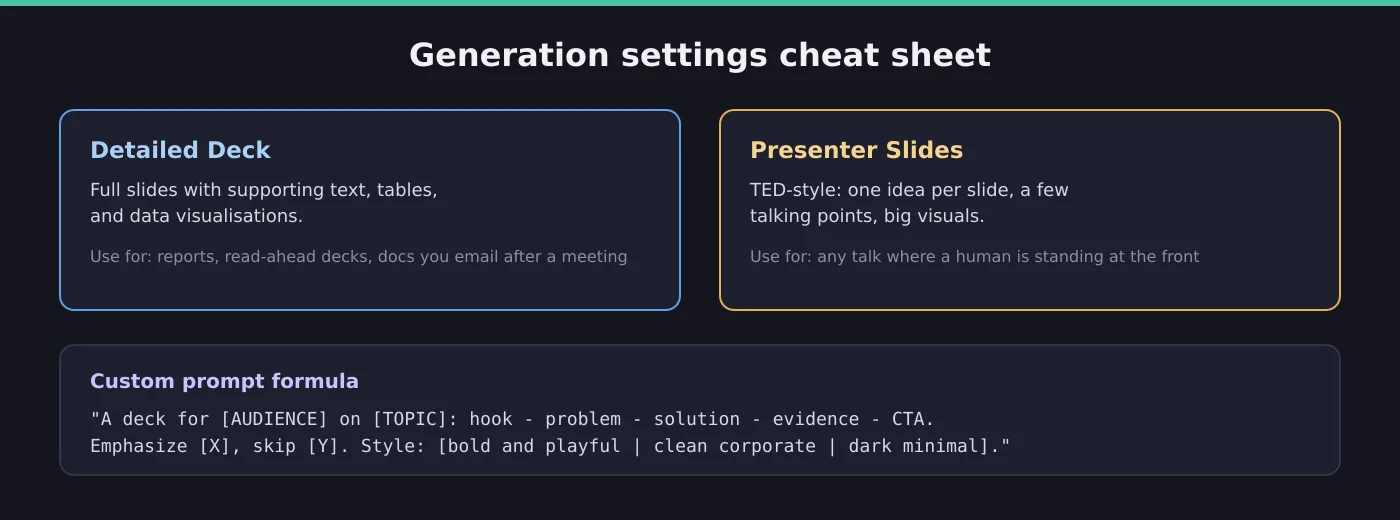
Open the Studio panel and select Slide Deck. Do not hit Generate immediately. Four knobs matter:
- Format: Detailed Deck for data-heavy read-ahead material, Presenter Slides for a live talk (TED-style, few words per slide). If you will speak, pick Presenter. Dense slides kill presentations.
- Length: short, default, or long. Short deck plus your verbal depth beats a long deck you read aloud.
- Sources: tick only the sources relevant to this deck.
- Custom prompt: the highest-leverage text box in the whole UI (see below).
The custom prompt formula
A blank prompt gets you a generic deck. This template consistently does not:
Create a deck for [AUDIENCE] about [TOPIC].
Structure: hook, problem, solution, evidence, call to action.
Emphasize [X], skip [Y].
Style: [clean corporate / bold and playful / dark minimal].Naming the audience and explicitly saying what to skip changes which content gets surfaced and how arguments flow between slides. It is not cosmetic.
Phase 3: Turn on Review outline (the step everyone skips)
Toggle Review outline before final rendering on. NotebookLM will produce a text outline first, and this is the cheapest moment in the whole pipeline to fix the story: wrong slide order, a missing section, a slide that serves no purpose.
Give all your outline feedback at once, then hit Proceed. Once you proceed, the outline is locked. Batch, do not nibble.
Phase 4: Revise per-slide, never regenerate from scratch
Never accept v1. Open the deck and use Revise mode: type instructions directly on each slide (change text, layout, or visuals), delete weak slides from the slide menu, drag thumbnails to reorder. Then press Generate revised deck once.
- Batch every revision into one generate. Each revision run creates an entirely new deck and eats your quota. Ten slides to fix means ten annotations and ONE click, not ten clicks.
- Revising existing slides is faster than generating a fresh deck from scratch.
- One gotcha: revisions do not consult your sources, so for factual corrections fix the source and regenerate instead of editing the slide.
Polish tricks that separate good decks from great ones
- Brand styling: upload your brandbook or a previous deck as a source and add “Use the brandbook for styling references” to the prompt. Works shockingly well.
- Data slides: ask for the numbers to be visualised as infographics. The Nano Banana Pro visuals turn stat soup into something people actually remember.
- Any aesthetic you want: “deep green blackboard with chalk text”, “swiss minimalist grid”, go wild, the renderer follows.
- The one-slide-one-job rule: if you cannot summarise a slide in one sentence while reviewing it, split or cut it.
Present and export
- For a live talk, hit Start slideshow and present full-screen straight from the browser (arrow keys to move, Esc to exit).
- For editing elsewhere, use the three-dots menu, then Download PowerPoint (.pptx) or PDF. The .pptx opens cleanly in Google Slides or PowerPoint.
- For sharing, the Share link option exposes the deck to anyone who can access the notebook.
- Finally, and non-negotiable: do a human pass in PowerPoint. AI decks still contain visual and factual inaccuracies. Verify every number, every claim, before an audience does it for you.
If you live in the terminal more than the browser, you might also enjoy installing Hermes Agent on Linux, and if you want to poke at the models behind tools like this, my walkthrough on red teaming an LLM chatbot with Garak and PyRIT goes the opposite direction: breaking them instead of presenting with them.
The deck is a first draft that arrives already styled. Source it well, review the outline, batch your revisions, and it will keep beating the blank-canvas version of you.