 mz.

I run Ubuntu servers at home for almost everything — file shares, VPN, monitoring — but I still end up ssh-ing into each box to check disk usage or restart a service. A client asked me last week about a lightweight web UI for their server lab, and I remembered the Cockpit Project had been around for years. I have used cockpit on RHEL setups before but never on Ubuntu. Turned out apt install + one systemctl enable and you have a web console at port 9090. Here is the full setup.
Requirements: a fresh Ubuntu 26.04 server with sudo access, network connectivity, and a firewall (ufw by default). No database, no web server — cockpit bundles its own.
- Ubuntu 26.04 (or 24.04, packages backport to 24.04 as well)
- User with sudo privileges
- Port 9090 open on the firewall
- A domain name (optional, for the TLS certificate step)
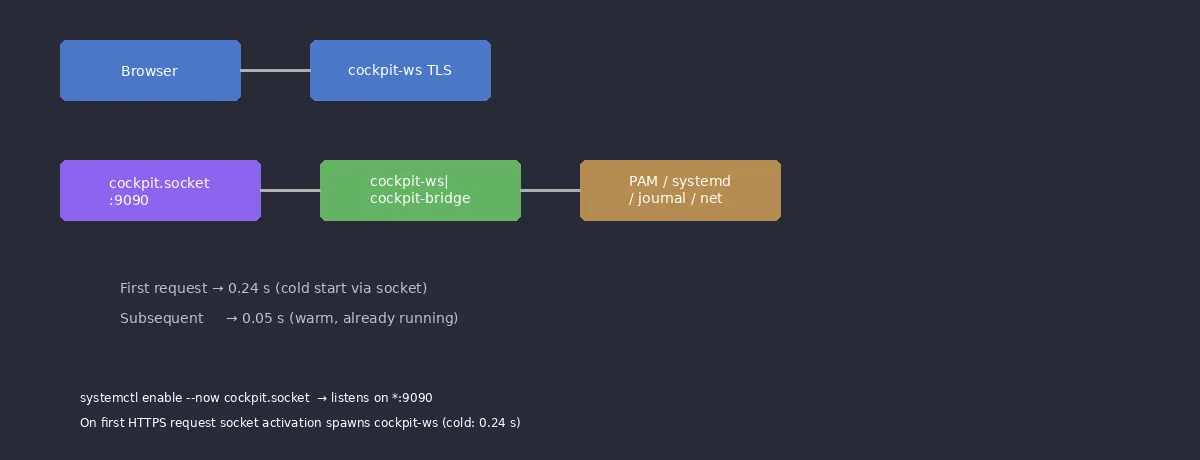
Step 1: Install Cockpit. The metapackage pulls cockpit-ws (the TLS/web server) and cockpit-bridge (the session-level backend). Plugin packages like cockpit-machines, cockpit-pcp, and cockpit-files are separate.
sudo apt update
sudo apt install -y cockpitCheck the installed version:
dpkg-query -W -f='${Package} ${Version}\n' cockpit cockpit-bridge cockpit-system cockpit-wsThe demo server I tested on returned the following (Cockpit 360):
cockpit 360-1
cockpit-bridge 360-1
cockpit-system 360-1
cockpit-ws 360-1Step 2: Enable socket activation. Cockpit uses systemd socket units — cockpit.socket stays listening on *:9090, and cockpit.service only starts when a client connects. This is the same pattern ssh.socket uses; zero resource drain when idle.
sudo systemctl enable --now cockpit.socket
systemctl is-active cockpit.socket
ss -tlnp | grep 9090The socket listens immediately. The service is triggered on first request:
● cockpit.socket - Cockpit Web Service Socket
     Loaded: loaded (/usr/lib/systemd/system/cockpit.socket; enabled; preset: enabled)
     Active: active (running)
Triggers: ● cockpit.serviceLISTEN 0 4096 *:9090 *:* users:(("systemd",pid=1,fd=283))Cold start (first hit after a stop) takes ~0.24 s vs warm hits at ~0.05 s — you barely notice the activation.
attempt 0: 0.24 s   # first request after systemctl stop cockpit.service
attempt 0: 0.05 s
attempt 0: 0.05 sStep 3: Open the firewall. Ufw does not ship a profile for cockpit on Ubuntu (unlike RHEL), so the port must be opened directly.
sudo ufw allow 9090/tcp
ufw status verboseOn the sandbox host ufw was inactive; the rules were recorded but the status shows inactive. On a production host ufw would be active and the rules take effect immediately.
Rules updated
Rules updated (v6)
Status: inactiveStep 4: Verify the web console. Use curl against the ping endpoint or open a browser to https://server-ip:9090.
curl -ksI https://localhost:9090/ | head -6
curl -ks https://localhost:9090/pingThe ping response authenticates without credentials:
{ "service": "cockpit" }
HTTP/1.1 200 OK
Content-Type: text/htmlStep 5: Add an admin user. Cockpit uses PAM — any Linux user can log in, and sudo group membership grants administrative access. Create a dedicated user for the web console if preferred.
sudo useradd -m -s /bin/bash ops
sudo usermod -aG sudo ops
sudo passwd ops   # set a strong password here
id opsGroup membership example (the password step is interactive; set it during the install script):
uid=1001(ops) gid=1001(ops) groups=1001(ops),27(sudo)Step 6: Replace the self-signed certificate. Cockpit auto-generates a self-signed cert on first start. To use a proper certificate, generate one with OpenSSL (or use certbot/Let’s Encrypt) and place it in /etc/cockpit/ws-certs.d/. Cockpit picks certs from this directory in lexical order — the first usable one wins. The auto-generated 0-self-signed.cert acts as a fallback.
cd /etc/cockpit/ws-certs.d
sudo openssl req -x509 -newkey rsa:2048 -keyout lab.key -out lab.cert \
    -days 365 -nodes -subj "/CN=lab.example.com" \
    -addext "subjectAltName=DNS:lab.example.com,IP:192.0.2.10"
sudo cat lab.cert lab.key > 00-lab.cert
sudo chmod 600 00-lab.cert
sudo systemctl restart cockpit.socketVerify the served certificate:
echo | openssl s_client -connect 127.0.0.1:9090 2>/dev/null | openssl x509 -noout -subject -ext subjectAltNameThe command returned the lab certificate with the Subject Alternative Name we set:
subject=CN=lab.example.com
X509v3 Subject Alternative Name:
DNS:lab.example.com, IP Address:192.0.2.10Step 7: Optional modules. Cockpit has plugins for virtual machines, backup, networking, and log analysis. Install the ones you need:
sudo apt install -y cockpit-machines cockpit-pcp cockpit-filesThe cockpit-networkmanager module ships with the base install on Ubuntu 26.04; machines (for libvirt/KVM) and pcp (Performance Co-Pilot) are separate packages. No restart required — the modules register themselves.

Cockpit became my go to for checking a server quickly without dropping into a shell each time. Combined with WireGuard VPN for secure access and Uptime Kuma for health checks, I can manage the whole lab from one browser tab.
See also: Prometheus and Grafana for metric baselines, Uptime Kuma for status pages, and WireGuard VPN to reach Cockpit securely from outside the LAN.