 mz.

I have been looking for a lightweight self-hosted monitoring tool for my servers, and Uptime Kuma by Louis Lam is exactly what I needed. It is open-source, runs in Docker, has a clean dashboard, and supports 90+ notification services including Telegram. Here is how I set it up.
GitHub: github.com/louislam/uptime-kuma
Official site: uptime.kuma.pet
Docker Hub: hub.docker.com/r/louislam/uptime-kuma
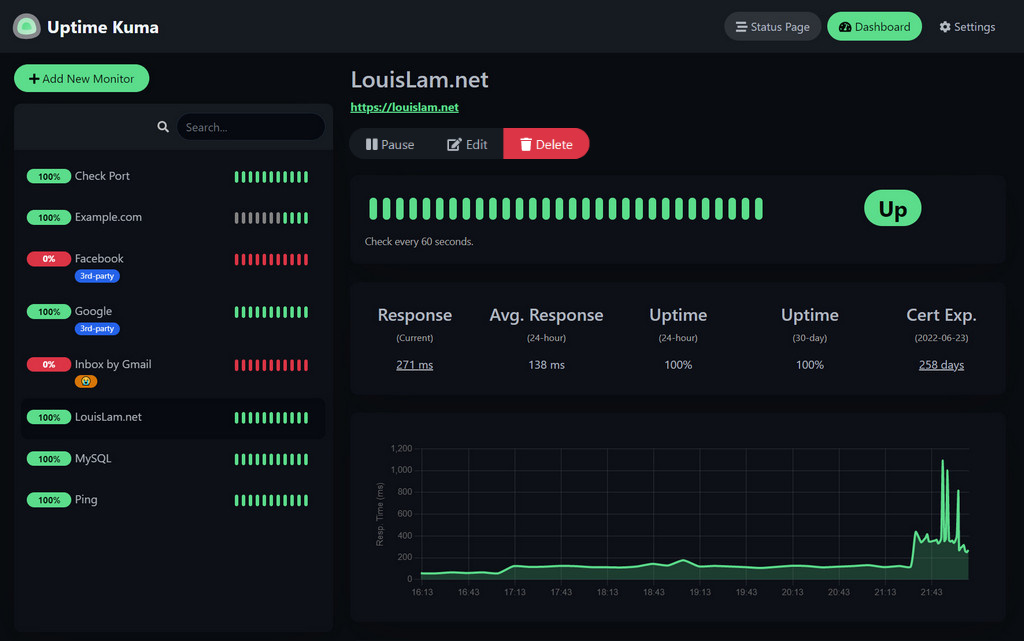
What Is Uptime Kuma?
Uptime Kuma is a fancy self-hosted monitoring tool that checks if your websites, servers, and services are online. It supports HTTP(s), TCP, Ping, DNS, WebSocket, and even Docker container monitoring. If something goes down, it sends you a notification instantly.
Key features that stood out to me:
- 20-second check intervals
- 90+ notification providers (Telegram, Discord, Slack, Email, etc.)
- Public status pages you can share
- SSL certificate expiry monitoring
- 2FA support
- Fancy reactive UI with dark mode
Installation with Docker
I used Docker Compose for a clean setup. Create a directory and deploy:
mkdir uptime-kuma
cd uptime-kuma
curl -o compose.yaml https://raw.githubusercontent.com/louislam/uptime-kuma/master/compose.yaml
docker compose up -dIf you prefer a one-liner Docker command instead:
docker run -d --restart=always \
  -p 3001:3001 \
  -v uptime-kuma:/app/data \
  --name uptime-kuma \
louislam/uptime-kuma:2Once running, open http://your-server-ip:3001 in your browser. You will see the setup screen to create an admin account.
Initial Configuration
After logging in, click Add New Monitor. You will see this form:
- Monitor Type – Choose HTTP(s), TCP, Ping, DNS, or others
- URL – The website or IP you want to monitor
- Friendly Name – A label for easy identification
- Interval – Default is 20 seconds, you can change it
- Retries – How many failures before alerting
I added a few monitors for my blog, API server, and some external services. The dashboard updates in real-time with a green/red status indicator for each monitor.
Create a Telegram Bot
Before configuring notifications in Uptime Kuma, you need a Telegram bot. Open Telegram and search for BotFather, the official bot management bot.
- Start a chat with BotFather and type
/newbot - Give your bot a name, for example
My Server Monitor - Give your bot a username ending with
_bot, for examplemyservermonitor_bot - BotFather will reply with an API token that looks like
1234567890:ABCdefGHIjklMNOpqrsTUVwxyz - Save this token, you will need it in Uptime Kuma
To get your Chat ID, send a message to your new bot, then visit:
https://api.telegram.org/bot/getUpdates Look for the chat.id field in the JSON response. That is your Chat ID. Alternatively, you can search for userinfobot on Telegram to get your ID instantly.
Configure Telegram Notifications
Now go back to Uptime Kuma:
- Click your profile icon (top right corner)
- Go to Settings > Notifications
- Click Add Notification
- Select Telegram from the list of providers
Fill in the details:
| Field | Value |
|---|---|
| Name | Anything like “Telegram Alerts” |
| Bot API Token | Your token from BotFather |
| Chat ID | Your Telegram Chat ID |
| Send as Silent | Optional, set to true for quiet notifications |
Click Test to verify the connection. If everything is correct, you will receive a test message on Telegram instantly.
Link Notification to Your Monitors
Go back to your monitor list. For each monitor you want alerts on:
- Click the Edit button on the monitor
- Scroll down to the Notification section
- Select the Telegram notification you just created
- Click Save
That is it. When a monitor goes down, Uptime Kuma will send you a Telegram message with the monitor name, status code, and error details. When it comes back up, you get another message confirming recovery.
Bonus: Public Status Page
Uptime Kuma also lets you create a public status page. Go to Status Page in the sidebar, click New Status Page, pick a title, and select which monitors to display. You can even map it to a custom domain like status.yourdomain.com.
Why I Like It
- Lightweight – Uses less than 100MB RAM for a handful of monitors
- Self-hosted – Your data stays on your server
- Beautiful UI – Clean dark theme with real-time status updates
- Easy Telegram integration – No webhooks or complicated configs
- Active development – Regular updates and community contributions
If you run multiple services and want a simple way to know the moment something breaks, Uptime Kuma with Telegram alerts is a solid combo. It took me about 10 minutes from docker pull to getting my first Telegram alert.